Connections for the MELE Media Player
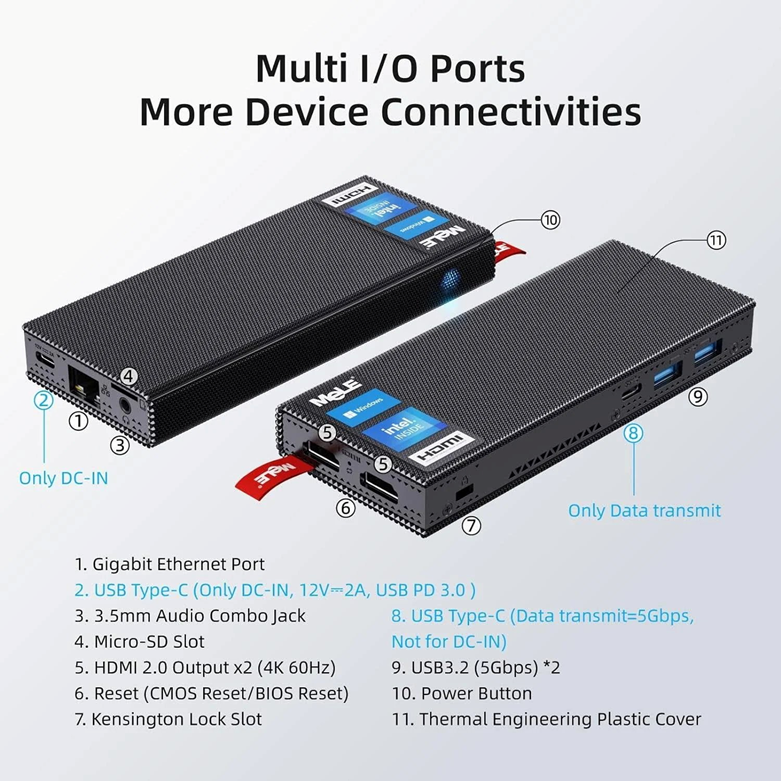
The diagram below identifies the ports available on the MELE media player. Please review the important notes that follow before making any connections.
 I
I
Important Connection Notes
Note 1: Power Supply — Use the Correct USB-C Port
The power supply uses a USB-C connector and must be plugged into the port labeled 2 USB Type-C (Only DC In 12V) — located just to the left of the port labeled 1 Gigabit Ethernet Port on the short side of the media player.
There is a second USB-C port on the long side of the media player,
labeled 8 USB Type-C (Data Transmit = 5 Gbps). Do not plug the power supply into Port 8. If the power adapter is connected to Port 8, the media player will not power on.
Note 2: HDMI Output — Use One Cable Only
There are two female HDMI 2.0 output ports, both labeled 5 HDMI 2.0 Output x2 on the diagram. You may plug your HDMI cable into either of these ports to connect to your display.
Use only one HDMI cable at a time. Do not connect two HDMI cables simultaneously to the media player.
Note 3: Touchscreen Displays — USB Port Setup (labeled 9)
There are two USB 3.2 ports labeled 9 USB 3.2 (5 Gbps) * 2 on the long side of the media player. If your display is a touchscreen, connect as follows:
• Plug the USB cable from the touchscreen display directly into one of the two Port 9 USB ports.
• Plug the 4-port USB hub into the other Port 9 USB port.
If the 4-port hub will be readily accessible once the media player is installed, no further action is needed — you can connect a keyboard and mouse directly to the hub as required.
If the media player will be mounted behind the display (making the hub difficult to reach), plug the 2 USB extension cables into the 4-port hub. This will allow you to connect a USB keyboard and mouse to the media player when needed — for example, when connecting the media player to a Wi-Fi network for the first time.
Note 4: Power Indicator & Auto Power-On (Port 10)
When power is supplied to the media player, the power button on the side labeled Port 10 will illuminate blue, confirming that the media player is powered on.
The media player is configured to power on automatically as soon as it detects power. This ensures the media player restarts on its own following a power outage, without requiring manual intervention.
If the blue light does not come on, check the following:
• The auto power-on setting may not be enabled in the BIOS.
• The power supply may be connected to Port 8 (Data Transmit only) rather than Port 2 (DC-IN). See Note 1 above.
Was this article helpful?
That’s Great!
Thank you for your feedback
Sorry! We couldn't be helpful
Thank you for your feedback
Feedback sent
We appreciate your effort and will try to fix the article